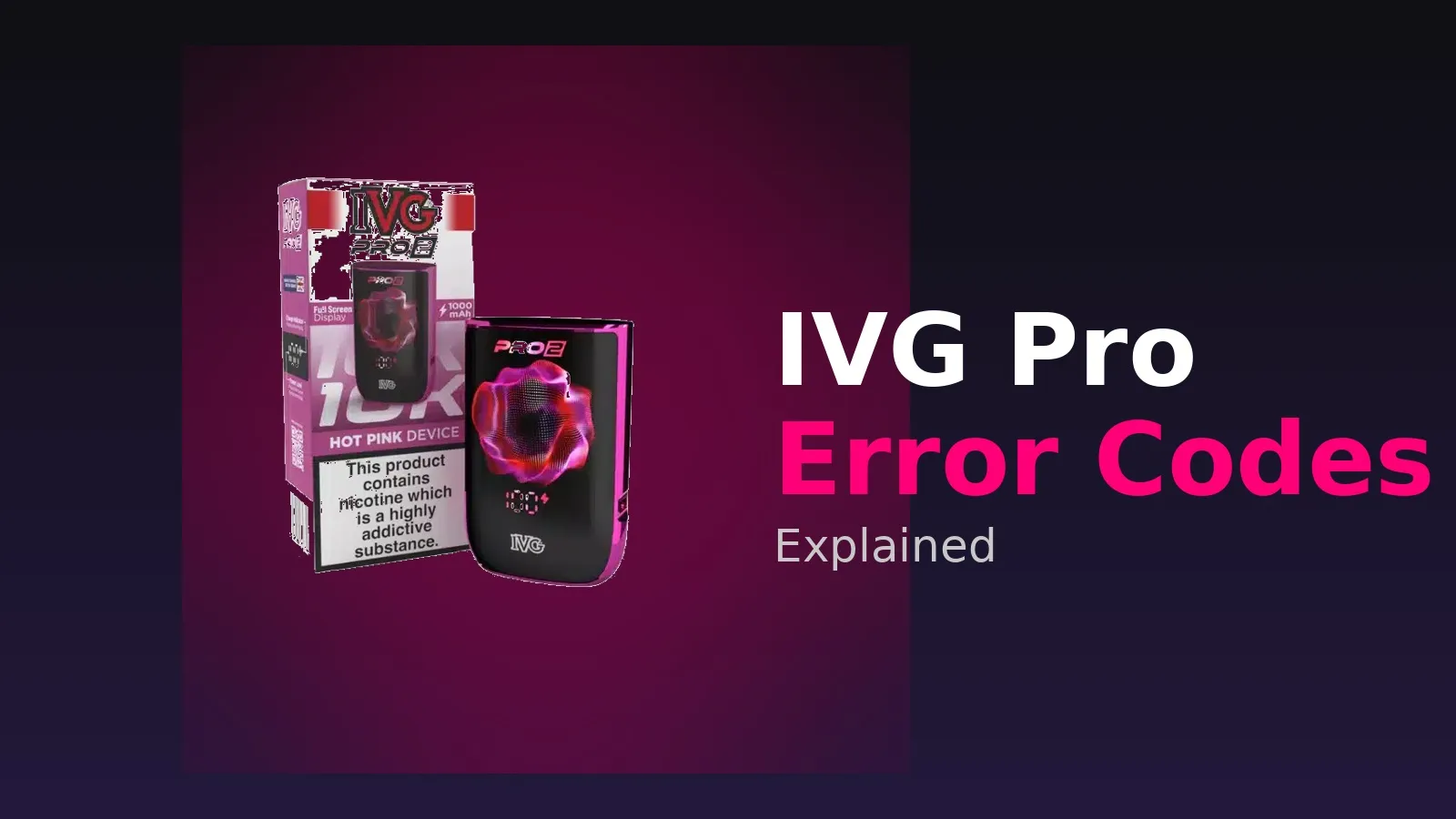
Last updated: January 2026
If your IVG Pro or IVG Pro 2 is flashing a code on the screen, don’t panic. Most IVG Pro error codes are quick and easy to fix at home, and rarely mean your device is broken.
So what does E2 mean on a vape? On the IVG Pro, the E2 error means the device is not detecting the pod correctly, usually because of a loose or dirty connection. Alongside E2, you might also see E1, H1, H3, X3, OP or a “Hi” display, and each one points to a specific, easily solved issue.
Most IVG Pro error messages come down to pod connection problems, overheating, low battery, or built-in safety protections. This guide breaks down every major error code, what it means, and exactly how to fix it, so you can get back to vaping without replacing your device unnecessarily.
IVG Pro Error Codes Quick Reference
| Error Code | Meaning | Quick Fix |
|---|---|---|
| E1 | Pod or circuit fault detected | Reinsert pod, clean contacts, try a fresh pod |
| E2 | Pod connection issue (pod not detected) | Clean contacts and reseat the pod |
| H1 | Temperature or hardware protection warning | Let the device rest and cool |
| H3 | Device overheating | Stop vaping and allow 5 to 10 minutes to cool |
| X3 | Pod not detected / resistance issue | Reinsert or replace pod |
| OP | Over-puff protection | Wait 20 to 30 seconds and take shorter puffs |
| Hi | Temperature protection (device too hot) | Let the device cool before vaping again |
| Flashing / no fire | Low battery or connection fault | Charge or check the pod |
Below, we explain each of these in detail.
IVG Pro E1 Error Code – What It Means & How to Fix It
The E1 error (sometimes searched as the “IVG Pro E1” or “IVG E1 error”) signals that the device has detected a fault with the pod or its internal circuit. It is closely related to E2, but tends to point more towards a pod or connection fault the device cannot verify rather than a simple loose fit.
Common causes:
- A worn, damaged or faulty pod
- Dirty or corroded contact points
- E-liquid or condensation bridging the connectors
- A non-genuine or incompatible pod
How to fix the E1 error:
- Remove the pod and inspect it for leaks or damage.
- Wipe the gold contacts on both the pod and the device with a dry tissue or cotton bud.
- Reinsert the pod firmly until it clicks into place.
- If the E1 message stays, fit a fresh genuine pod.
In most cases, a clean and a new pod clears the E1 error straight away. If you regularly see leakage causing these faults, our guide on how to fix a leaking vape tank covers the wider principles that also apply to pods.
IVG Pro E2 Error Code – What Does E2 Mean on a Vape?
The E2 error is the most common issue with IVG Pro devices. In short, E2 on a vape means the device is not properly detecting the pod. The E2 meaning on a vape is almost always a physical connection fault rather than a broken battery, which is good news because it is usually the easiest to fix.
Causes of the E2 vape error:
- Pod not fully inserted
- Dirty or wet contact points
- Condensation or e-liquid leakage
- Worn or faulty pod
How to fix the E2 error:
- Remove the pod.
- Clean the gold contacts using a dry tissue or cotton bud.
- Reinsert the pod firmly.
- Try a new pod if the issue continues.
In most cases, this resolves the problem instantly and your IVG Pro fires as normal again.
IVG Pro H1 Error Code Explained
The H1 error is a protection warning and should not be confused with the H3 overheating code. Where H3 is triggered specifically by the device getting too hot, H1 is a broader temperature or hardware protection message that pauses firing to keep the device safe.
What to do if you see H1:
- Stop vaping and put the device down for a few minutes.
- Make sure it is not sitting in direct sunlight, a warm car or near a heat source.
- Remove and reseat the pod once the device has cooled.
- Avoid vaping while the device is on charge.
If H1 keeps returning even when the device is cool and the pod is clean, it is worth contacting IVG support, as a persistent hardware protection code can indicate a fault. Understanding how batteries behave also helps here, so our vape battery safety guide is a useful read.
IVG Pro H3 Error Code – Device Overheating
The H3 error indicates that the device has become too hot. This is a built-in safety feature to prevent overheating and protect the battery.
Causes:
- Chain vaping
- Charging while using
- Exposure to heat (sunlight, hot car, and so on)
Fix:
- Stop using the device
- Leave it for 5 to 10 minutes
- Allow it to cool naturally
- Avoid vaping while charging
Once cooled, the device will return to normal.
What Does “Hi” Mean on IVG Pro?
If your screen shows “Hi” rather than a numbered code, this is a temperature-related protection message, effectively telling you the device or coil temperature is too high to fire safely. It works in the same family as the H1 and H3 codes.
The fix is simple: stop vaping, let the device rest and cool for a few minutes, and keep it out of hot environments. Once the temperature drops back to normal, the “Hi” message clears and the device fires again. If “Hi” appears constantly even from cold, reseat or replace the pod, and if it still persists, check with IVG’s official support channel to confirm the reading, rather than assuming a fault.
IVG Pro X3 Error Code – Pod Not Detected
The X3 error indicates the device cannot read the pod correctly. This is usually related to resistance detection or poor contact and behaves a lot like a stronger version of E2.
Fix:
- Remove and reinsert the pod
- Clean the contact points
- Replace the pod
- Ensure you are using compatible IVG Pro refill pods
If the issue persists, the pod itself is usually the cause. This is a similar principle to the classic “no atomizer” fault on tank-based kits, which we cover in our guide to fixing a no atomizer / check atomizer error.
IVG Pro OP Code – Over-Puff Protection
People often ask what does OP mean on a vape? On the IVG Pro, the OP code stands for over-puff protection. It is a safety limit, not a fault.
OP typically activates when:
- You take a very long inhale
- You vape repeatedly in quick succession
Fix:
- Wait 20 to 30 seconds
- Take shorter puffs
This is completely normal behaviour and does not mean anything is wrong with your device.
Why Is My IVG Pro Not Charging?
If your IVG Pro is not charging properly, check the following:
- USB-C cable is working
- Charging plug is functional
- Charging port is clean (no dust or lint)
- Device shows a battery indicator
Quick Fix:
- Clean the charging port gently
- Try a different cable or plug
- Avoid using fast chargers
Charging issues are often caused by cables rather than the device itself. To get the most out of each charge once it is working, see our tips on how to extend vape battery life.
Why Has My IVG Pro Stopped Working? Full Troubleshooting Checklist
If your IVG Pro is not working but showing no error code, or has simply stopped working mid-use, work through this checklist in order. It answers the most common questions we see, including “why is my IVG Pro not working?” and “why has my IVG Pro stopped working?”.
- Charge the device fully. A flat or nearly flat battery is the single most common reason an IVG Pro stops firing.
- Remove and reinsert the pod. Reseating fixes most connection-related faults.
- Clean all contact points. Use a dry cotton bud on both the pod and the device.
- Try a new refill pod. A worn pod is a frequent culprit when the device is not working properly.
- Check for condensation or leakage inside the device. Dry it out fully before refitting the pod.
- Ensure the airflow is not blocked. Blocked airflow can stop the device firing or reduce vapour.
- Watch for auto-firing. If the device fires by itself, our guide on how to stop a vape from auto-firing can help.
If none of these steps works and the device still will not fire, charge or hold a charge, it may genuinely be faulty and due for replacement.
IVG Pro vs IVG Pro 2: Do Error Codes Differ?
The IVG Pro and the newer IVG Pro 2 share the same core error-code system, so E1, E2, H1, H3, X3, OP and the “Hi” display mean the same thing across both devices, and the fixes above apply to each. The main differences between the two models are around design, battery and pod capacity rather than the way errors are reported.
The key practical point is compatibility: always match your device to its correct pods. Mixing incompatible pods is a common cause of E1, E2 and X3 codes. If you are new to this style of device, our explainer on vape pods vs tanks is a helpful primer.
Is My IVG Pro Still Legal to Use After the Disposable Vape Ban?
Yes. The single-use disposable vape ban came into force across the UK on 1 June 2025, and the wider Tobacco and Vapes Act continues to shape the market. The IVG Pro is a reusable, rechargeable pod device with refillable pods, positioned as a “big puff” alternative to disposables, which is exactly the format the rules are steering people towards.
Because it is rechargeable and uses replaceable pods, and UK e-liquid is capped at 20mg/ml nicotine, the IVG Pro remains legal to buy and use. For the full picture, read our guides on whether disposable vapes are being banned in the UK, big puff vapes and the disposable ban, and our wider guide to big puffs. If you are shopping for a compliant device, our roundup of the best big puff vapes is a good place to start.
When Should You Replace Your IVG Pro Device?
You should consider replacing your device if:
- Errors continue after trying multiple genuine pods
- The device will not charge at all
- It does not fire even after cleaning and reseating the pod
- The screen continues to glitch or flash
At this stage, replacing the battery device is usually more cost-effective than further troubleshooting.
Compatible Pods for IVG Pro Devices
For the best performance, always use genuine compatible IVG Pro 12 Refill Pods designed for your device.
Using the correct pods ensures:
- Accurate resistance detection
- Better flavour and vapour production
- Fewer connection errors such as E1, E2 and X3
Frequently Asked Questions
What does E2 mean on a vape?
On the IVG Pro, E2 means the pod is not making proper contact with the device. Clean the gold contacts, reseat the pod firmly, and fit a fresh pod if it persists.
What does the IVG Pro E1 error mean?
E1 signals a detected pod or circuit fault. Reinsert the pod, clean the contacts, and try a genuine replacement pod. If E1 stays, the pod is usually the cause.
What is the IVG Pro H1 error?
H1 is a temperature or hardware protection warning. Let the device cool, keep it out of hot places, and reseat the pod. It is separate from the H3 overheating code.
What does “Hi” mean on IVG Pro?
“Hi” is a temperature protection message telling you the device is too hot to fire. Let it rest and cool for a few minutes, and it will return to normal.
What does OP mean on a vape?
OP stands for over-puff protection. It activates after long or rapid puffs. Wait 20 to 30 seconds and take shorter draws. It is normal, not a fault.
Why is my IVG Pro not working?
Most often it is a flat battery or a pod connection issue. Charge it fully, clean the contacts, reseat or replace the pod, and check the airflow is clear.
Why has my IVG Pro stopped working?
If it stopped mid-use, the battery may be depleted or the pod worn. Recharge, fit a new pod and clean the contacts. If it still will not fire, it may be faulty.
Why is my IVG Pro flashing but not hitting?
This is usually a low battery or a pod connection issue. Charge the device and reseat the pod.
Why is my IVG Pro not producing vapour?
This can be due to a faulty pod, blocked airflow or poor connection. Try a new pod and make sure the airflow is not blocked.
Need a Replacement?
If your device or pods are no longer working correctly, upgrading or replacing them ensures the best experience. Make sure you are using the latest compatible device and genuine pods for optimal performance, and keep your kit clean and charged to avoid most error codes in the first place.